Iptv On Samsung Tv
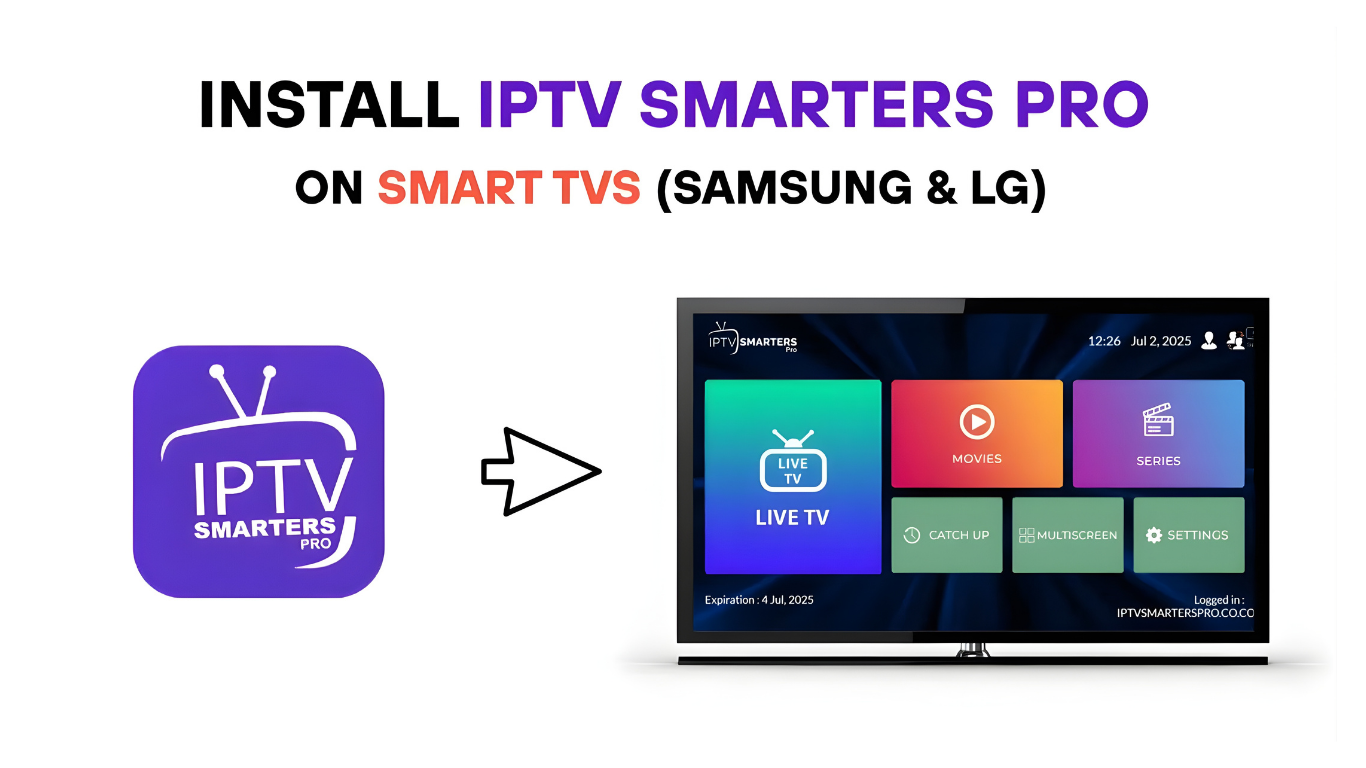
Smart TVs have changed the world of home entertainment, making it easier than ever to access online content without external devices. Among all smart platforms, Samsung TVs are some of the most popular in the UK, US, and worldwide. One of the biggest trends today is using IPTV on Samsung TV to watch live channels, sports, movies, and on-demand content directly through internet-based streaming.
With more households moving away from traditional cable services, IPTV has quickly become a top alternative. If you’ve ever wondered how to install IPTV apps, which IPTV players work best on Samsung TVs, or how to optimise your setup, this guide covers every step clearly and safely.
What Is IPTV and Why Is It Popular on Samsung TVs?
Understanding IPTV
IPTV, short for Internet Protocol Television, delivers TV channels through the internet instead of satellite or cable signals. It allows viewers to access live channels, movies, series, sports events, and much more using apps installed on digital devices.
Samsung Smart TVs, built with Tizen OS, support many IPTV applications that make streaming simple, fast, and user-friendly.
Why People Prefer IPTV on Samsung TV
There are several reasons why IPTV on Samsung TV has become extremely popular:
-
No need for Firestick or Android TV box
-
Easy app installation
-
Smooth interface and reliable performance
-
Access to global channels
-
Lower monthly costs than cable TV
-
Supports HD and 4K streams
Samsung’s high-quality displays make IPTV content look sharper and more vibrant, which is a major attraction for viewers.
Is IPTV Legal on Samsung TVs? Understanding the Rules
Using IPTV technology is completely legal. Many official IPTV apps are available directly in the Samsung App Store, such as:
-
Pluto TV
-
Plex
-
Samsung TV Plus
-
FITE TV
-
BBC iPlayer
-
ITVX
-
CHILI TV
These services operate with proper licensing and broadcast permissions.
When IPTV Becomes Illegal
IPTV is only illegal when providers distribute copyrighted content like paid sports channels or premium movie networks without authorization.
To stay safe:
✔️ Use official IPTV apps
✔️ Avoid providers offering “Sky Sports + 10,000 channels for £5/month”
✔️ Stick to verified IPTV platforms
✔️ Research the provider before adding playlists
This ensures you enjoy IPTV on Samsung TV without legal risk.
Can All Samsung Smart TVs Install IPTV Apps?
Samsung TVs run on the Tizen operating system. IPTV compatibility depends on your Samsung model’s year.
Compatible Models
Most models from 2017 to 2024 fully support IPTV apps.
Older Models (2012–2016)
Older Samsung TVs may not support certain IPTV apps, but many still work with:
-
Smart IPTV (SIPTV)
-
OTT Navigator (via USB in some cases)
-
SS IPTV
Always check the app availability in the Samsung App Store.
If your Samsung TV does not support an IPTV app, a Firestick or Android box is an easy solution.
Best IPTV Apps for Samsung TV in 2025
Samsung’s Tizen OS provides a polished environment to run IPTV apps. Below are the top IPTV players that perform best.
1. Smart IPTV (SIPTV)
One of the first and most popular IPTV apps for Samsung.
Features include:
-
M3U playlist support
-
EPG (Electronic Programme Guide)
-
Channel sorting
-
Smooth live playback
It requires a one-time activation fee.
2. IPTV Smarters Pro
A widely used and user-friendly IPTV app supporting:
-
Xtream Codes API
-
M3U playlists
-
Catch-up
-
Multi-screen
-
VOD & Series section
Although removed from some app stores, it is still available on many Samsung models.
3. SS IPTV
A free IPTV player compatible with most Samsung TVs.
Benefits:
-
Fast performance
-
Easy playlist upload
-
User-friendly interface
4. OTT Navigator
For users who want more control over channels, EPG, and filters. Excellent for large IPTV playlists.
5. TiviMate (Alternative Method)
TiviMate is not available directly on Samsung App Store, but you can use a Firestick or Android box to access it if you prefer.
How to Install IPTV on Samsung TV (Step-by-Step Guide)
Setting up IPTV on Samsung TV is very easy. Follow the steps below.
Step 1: Open the Samsung Smart Hub
Use your TV remote and press the Home button.
Navigate to the Apps section.
Step 2: Search for an IPTV App
In the App Store, search for:
-
Smart IPTV
-
SS IPTV
-
IPTV Smarters
-
OTT Navigator
If the app appears, click Install.
Step 3: Open the IPTV App
Once installed, open the app.
It may show a MAC address or activation screen.
Step 4: Add Your IPTV Playlist
Your IPTV service provider will give you:
-
M3U playlist URL
-
Xtream Codes API
-
Username and password
-
EPG link
Enter this information into the app based on the instructions.
Step 5: Load Channels
After entering your details:
-
Channels will update
-
Categories will appear
-
EPG guide will download
You can now stream live TV, sports, movies, and on-demand content.
Benefits of IPTV on Samsung TV
No Extra Hardware Needed
Samsung Smart TVs do not require external streaming devices.
Cleaner, Faster Interface
Tizen OS is lightweight, smooth, and stable, making IPTV streaming seamless.
Better Picture Quality
Samsung is known for superior displays, improving the visual quality of IPTV streams.
Affordable Streaming
IPTV services often cost a fraction of cable or satellite.
Common Issues When Using IPTV on Samsung TV & Solutions
Even though Samsung TVs are reliable, you might face occasional issues. Here’s how to fix them:
1. IPTV App Not Showing in App Store
Possible causes:
-
Unsupported TV model
-
Regional restrictions
Solution: Change region, update firmware, or use a Firestick.
2. Buffering or Freezing
Common causes include:
-
Weak Wi-Fi
-
Slow ISP speed
-
Busy IPTV server
Fixes:
✔ Restart router
✔ Switch to 5GHz Wi-Fi
✔ Use wired Ethernet adapter
✔ Reduce resolution from 4K to 1080p
3. Playlist Not Loading
This usually means:
-
Wrong M3U link
-
Expired subscription
-
Provider server issue
Contact your IPTV provider to confirm.
4. App Crashing
Fix by:
-
Clearing app cache
-
Updating Samsung firmware
-
Reinstalling the IPTV app
How to Improve IPTV Performance on Samsung TV
Use Ethernet Instead of Wi-Fi
A wired connection is always faster and more stable.
Close Background Apps
Samsung TVs sometimes slow down if too many apps run in the background.
Reboot Your TV Weekly
This refreshes internal memory and improves speed.
Use a Playlist with Updated EPG
Old EPG files slow down loading time.
IPTV on Samsung TV vs IPTV on Firestick
| Feature | Samsung TV | Firestick |
|---|---|---|
| App Support | Good but limited | Very wide range |
| Performance | Very stable | Depends on model |
| Installation | Simple | Requires Downloader |
| Best for | Clean setup | Advanced IPTV apps |
Many users prefer IPTV on Samsung TV for simplicity, while power users choose Firestick for extra features.
FAQs About IPTV on Samsung TV
1. Is IPTV safe to install on Samsung TVs?
Yes, using legal IPTV apps is completely safe.
2. Can I install IPTV Smarters on any Samsung TV?
It depends on your Samsung model and region.
3. Do I need fast internet for IPTV?
At least 20 Mbps for HD and 50 Mbps for 4K streams.
4. Can I use VPN on Samsung TV?
Yes, many Samsung models support VPN apps or router-level VPNs.
5. Why did Smart IPTV disappear from my store?
Samsung occasionally removes apps based on region or support changes.
6. What’s the best IPTV app for Samsung TVs?
Smart IPTV and SS IPTV are top choices.
Conclusion
Using IPTV on Samsung TV is one of the simplest, cleanest, and most efficient ways to enjoy internet-based TV streaming. With no extra hardware needed, easy setup, and access to high-quality IPTV UK apps, Samsung TVs provide a premium streaming experience for both beginners and advanced users.
As long as you choose legal IPTV services and follow setup instructions carefully, your Samsung TV can become a powerful entertainment hub with endless viewing options.
Simple, Transparent Pricing
Choose the plan that works best for you. All plans include our 30-Day Money-Back Guarantee.
Limited Time Flash Sale!
Prices will return to normal after the timer ends.
Monthly
Perfect for trying out our service
-
28,000+ Live TV Channels
-
Full HD & 4K Quality
-
7-Day Catch Up
-
VOD Library (Movies & Series)
-
Use on 1 Device
-
24/7 Support via WhatsApp
3 Months
Great value for short term
-
28,000+ Live TV Channels
-
Full HD & 4K Quality
-
7-Day Catch Up
-
VOD Library (Movies & Series)
-
Use on 2 Devices Simultaneously
-
24/7 Support via WhatsApp
-
Save over 20% vs Monthly
Annual
Best value for loyal customers
12 Months + 2 Months FREE
-
28,000+ Live TV Channels
-
Full HD & 4K Quality
-
7-Day Catch Up & Recording
-
Premium VOD Library (Updated Daily)
-
Use on 3 Devices Simultaneously
-
VIP 24/7 Support
-
Save over 60% vs Monthly
-
Free Setup Assistance
Quarterly
Popular choice for commitment
-
28,000+ Live TV Channels
-
Full HD & 4K Quality
-
7-Day Catch Up & Recording
-
Extensive VOD Library
-
Use on 2 Devices Simultaneously
-
Priority 24/7 Support
-
Early access to new features
Secure Payment Options
We accept various secure payment methods for your convenience.
Ready for a Longer Test Drive?
Experience the full power of iptvuk.you IPTV with our exclusive 24-hour free trial. Access all 28,000+ channels, VOD, and premium features with no obligation. It's the perfect way to see why we're the UK's favourite IPTV provider!
Contact Us
Have questions or need assistance? We're here to help!
Get in Touch
Email Us
contact@iptvuk.it.com
Available 24/7
Call Us
+447453598130
Available 24/7
Live Chat
Available on our website
Response time: Under 5 minutes
Our Hours
Customer Support: 24/7
Sales Department: Mon-Fri, 9am-6pm GMT
Technical Support: 24/7
